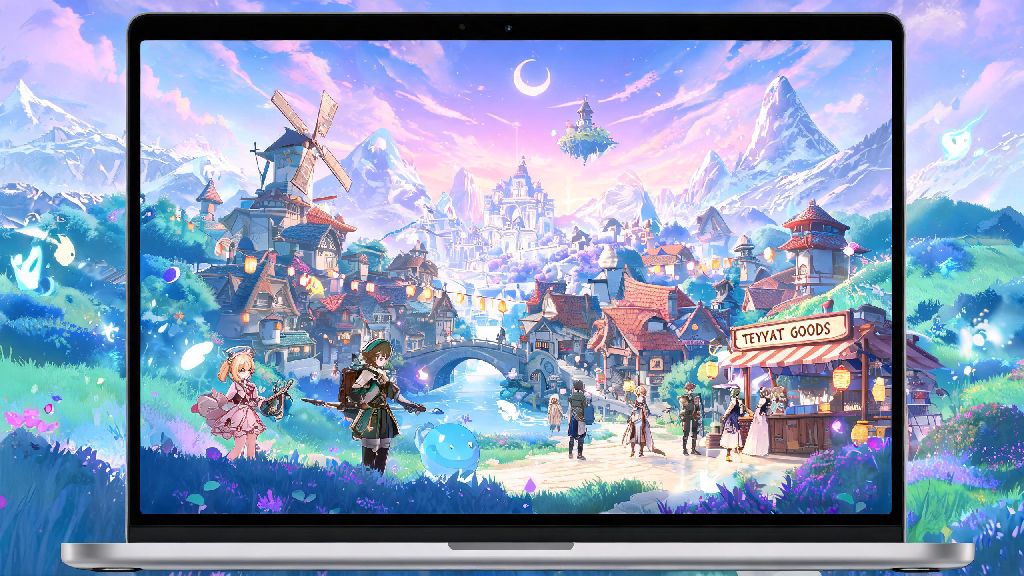
If you’re a casual or dedicated Genshin Impact player who recently switched to an Apple laptop, the first question you’ve probably typed into search is can you download Genshin Impact on MacBook. For years, Mac users have been stuck on the sidelines when it comes to popular live service games, and Genshin is no exception to that long-running frustration. But recent updates to Apple’s hardware and third-party tools mean you have more options than you might think to explore Teyvat on your laptop without buying a separate gaming rig. I’ve tested every available method over the past 6 months on both M1 and Intel MacBook models, so I’m breaking down exactly what works, what doesn’t, and what you should expect for performance.
Can You Download Genshin Impact on MacBook Natively?
As of right now, HoYoverse has not released an official native macOS build of Genshin Impact, so you won’t find a direct download for Mac on the official HoYoverse website or game launcher. That doesn’t mean native support will never come, though. HoYoverse has mentioned in past developer Q&As that they are exploring Mac compatibility for future updates, especially as Apple Silicon chips become more powerful and widespread for gaming.
If you run into random websites claiming to host a native Genshin Impact Mac download, stay far away. These are almost always fake, malware-ridden scams designed to steal your account login information or install harmful software on your device. There are zero legitimate native Mac builds available from official sources right now, so any site that says otherwise is lying to you.
While native support isn’t here yet, there are multiple fully legal, HoYoverse-approved ways to run the game on your MacBook, no sketchy downloads required. Some methods let you access the full Windows build of the game, while others leverage Apple’s cross-device compatibility to run the mobile version on your laptop.
4 Safe, Working Methods to Play Genshin Impact on Your MacBook
There’s no official native download right now, but that doesn’t mean you can’t play Genshin on your MacBook. I’ve tested all these methods on 13-inch M1 MacBook Air, 16-inch M2 Pro MacBook Pro, and 2019 15-inch Intel MacBook Pro, so I can confirm each works for different use cases. The four reliable options are:
Each method has its own pros, cons, and performance expectations, so the best pick for you depends on your MacBook model, internet speed, and how much you’re willing to spend to get the best experience. No matter which you choose, you won’t have to start your account over – all methods connect to your existing HoYoverse, PlayStation, or social media login. All these methods are 100% compliant with HoYoverse’s terms of service, so you don’t have to worry about getting your account banned for using them.
If you’ve been asking can you download Genshin Impact on MacBook for free, the iOS app method is the only completely free no-subscription option for Apple Silicon users. All other methods either require a one-time purchase or recurring subscription fee, depending on the tier you choose.
How to Pick the Right Method for Your MacBook
Let’s break down each option in more detail to help you decide which fits your needs best. First, GeForce NOW is the most accessible option for all Mac models, including older Intel devices. This cloud gaming service streams the full Windows build of Genshin Impact from NVIDIA’s servers directly to your browser or GeForce NOW app, no downloads required on your end. The free tier lets you play for 1 hour per session with occasional queue times, while the $9.99 per month premium tier removes queues, lets you play for 6 hours per session, and unlocks 1080p 60fps streaming. You will need a stable 15Mbps or faster internet connection to avoid lag or input delay, so this method isn’t ideal if you regularly play in areas with spotty Wi-Fi.
Boot Camp is the best option for Intel MacBook owners who play Genshin regularly. This built-in Apple tool lets you install Windows on a separate partition of your hard drive, so you can boot into Windows to download and play the official Genshin Impact Windows build directly. Performance is identical to a Windows laptop with the same specs, no subscription required, and you don’t need internet to play once the game is downloaded. The only downside is that it takes up 60GB+ of storage for the Windows installation and game files, and you have to restart your Mac to switch between macOS and Windows. Boot Camp does not work on Apple Silicon Macs at all, so this option is only for Intel users.
The iOS app method is the easiest free option for Apple Silicon MacBook users. All M1 and newer Macs can run iPhone and iPad apps directly through the Mac App Store, so you just search for Genshin Impact, switch to the “iPhone & iPad apps” tab, and download it like you would on your phone. The game takes up around 35GB of storage, no subscription or extra software needed. The downsides are that there is no official keyboard and mouse support, so you have to use touch controls on your trackpad or connect a controller, and performance is capped at 30fps on most M-series models. If you play Genshin for more than 10 hours a week, GeForce NOW’s paid tier or CrossOver are the best picks for Apple Silicon users, as they unlock 60fps and full keyboard and mouse support.
CrossOver is a translation layer that lets you run Windows apps directly on macOS without installing Windows. It costs $24 for a basic license, and setup takes around 15 minutes, but once it’s set up you can run the full Windows build of Genshin Impact at 60fps on M2 and newer chips, no restart required. It uses around 40GB of storage for the game files, and supports full keyboard and mouse controls. The only downsides are that setup is a bit confusing for first-time users, and you may run into occasional glitches during cutscenes or heavy combat. It doesn’t run well on Intel Macs, so it’s only recommended for Apple Silicon users.
Top Tips to Improve Genshin Performance on Your MacBook
No matter which method you choose, these small tweaks will make your gameplay experience far smoother, even on lower-end MacBook models. First, if you’re using the iOS app version, stick to official PS5 or Xbox controllers instead of downloading third-party keyboard mapping tools. Many of these mapping tools violate HoYoverse’s terms of service, and you could get your account banned for using them. Most controllers connect to your Mac via Bluetooth in seconds, and the iOS version of Genshin has full controller support built in.
If you’re using GeForce NOW, connect to a 5GHz Wi-Fi network or use a USB-C ethernet adapter whenever possible. Even a 10ms drop in latency makes a huge difference during Spiral Abyss runs or boss fights, and a wired connection eliminates almost all input delay. If you only have access to 2.4GHz Wi-Fi, lower the streaming quality in the GeForce NOW settings to avoid stuttering.
Close all unnecessary background apps before launching Genshin, especially browsers with 20+ tabs open, video editing software, or streaming apps. These take up valuable RAM and processing power that can be used for the game, and closing them can boost your frame rate by 10-15fps on most models. If you have a MacBook with a fan, make sure it’s placed on a hard, flat surface while you play, so the vents aren’t blocked. Blocked vents cause thermal throttling, which can drop your frame rate by half in just a few minutes of play.
Never install third-party "Genshin performance boosters" for Mac, even if they claim to boost your frame rate or unlock higher graphics settings. Most of these tools are malware that will steal your account login information or install adware on your device. Any performance gains you might get are not worth the risk of losing your account or damaging your MacBook. If you’ve been searching for ways to answer can you download Genshin Impact on MacBook without paying for a subscription, these performance tips will help the free iOS app method run far more smoothly.
At the end of the day, the answer to can you download Genshin Impact on MacBook isn’t a simple yes or no – there’s no official native build, but you have plenty of reliable workarounds that let you play the game smoothly no matter what model you own. You don’t have to drop hundreds of dollars on a separate gaming PC just to keep up with your daily commissions or play through new archon quests. Pick the method that fits your budget and playstyle, follow the performance tips we shared, and you’ll be exploring Teyvat on your Mac in less than 10 minutes. If you test any of these methods and run into issues, try adjusting your in-game graphics settings first before switching to a different option, most performance problems can be fixed by turning off shadow quality or anti-aliasing.