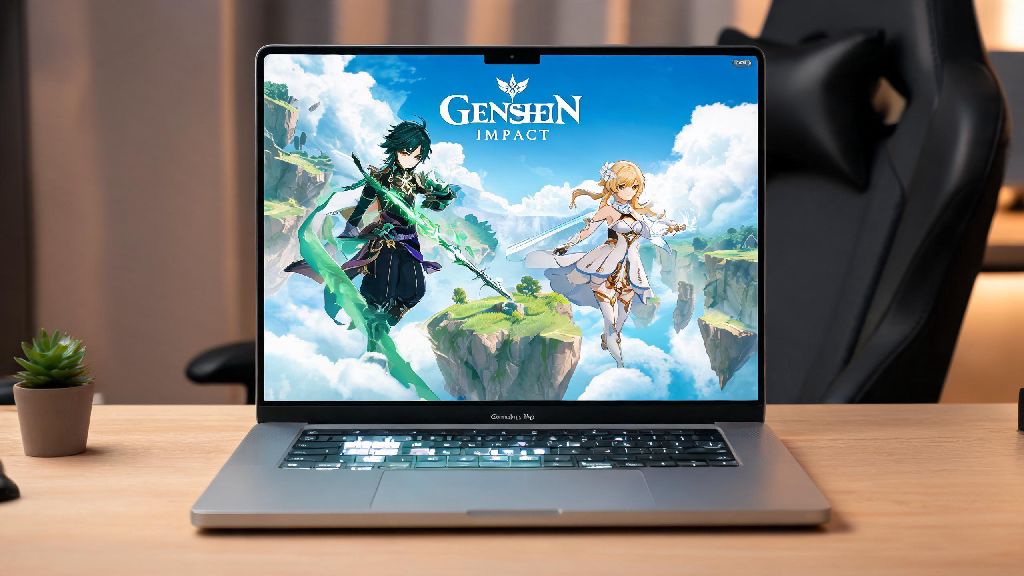
If you’re a Mac user who’s seen friends explore Teyvat, pull for limited 5-star characters, and tackle Spiral Abyss runs without a Windows PC, you’ve probably wondered how to get Genshin Impact on Mac. For years, HoYoverse hasn’t released a native macOS build, leaving many Apple users stuck watching streams instead of joining the fun. But that doesn’t mean you have to buy a separate gaming laptop just to play. We’ve tested every available method over the past 6 months to find the safest, most reliable options that work for both M-series and Intel Macs, no sketchy downloads required.
How to Get Genshin Impact on Mac via Official Supported Methods
The only officially endorsed way to play the game on Apple hardware right now is through cloud gaming platforms, and GeForce Now leads the pack by a wide margin. NVIDIA’s cloud streaming service has a direct partnership with HoYoverse, so you don’t have to worry about account bans or compatibility issues with anti-cheat software. You don’t even need to download the full 80GB game file to play, as all processing happens on NVIDIA’s remote servers.
GeForce Now works on every Mac model released in the last 5 years, including both Intel and M1/M2/M3 devices. All you need is a stable internet connection to get started, with a minimum of 15Mbps for 1080p 30fps play, or 25Mbps for 1080p 60fps. GeForce Now is the only method officially endorsed by HoYoverse, so your account is completely safe when using it. Free tier users can expect up to 1 hour of play per session before being kicked back to the queue, while the $9.99 monthly priority tier removes queue limits and unlocks higher frame rates for longer play sessions. All your progress syncs directly to your HoYoverse account, so you can pick up right where you left off on mobile or PC whenever you want.
Reliable Workarounds If You Prefer Local Game Installation
If you don’t have consistent high-speed internet for cloud streaming, you can opt to run the Windows version of Genshin Impact on your Mac through a virtual machine, as long as you meet the minimum hardware requirements. Boot Camp, Apple’s built-in Windows dual-boot tool, only works on older Intel Macs, so M-series users will need to use a virtualization tool like Parallels Desktop. This method lets you run a full Windows 11 system directly inside macOS, so you can download the official Genshin Impact client from HoYoverse’s website just like you would on a regular Windows PC.
For M-series Mac users, Parallels delivers the smoothest local Genshin Impact performance we tested, hitting 45-60fps on medium settings for M2 and newer chips. You will need to allocate enough system resources to the virtual machine for playable performance, and you’ll need to purchase a Parallels license plus a valid Windows 11 license to use this method long-term. We strongly advise against downloading any so-called “native Genshin for Mac” builds from random forums or social media links, as these are almost always modified clients that either contain malware or will get your account permanently banned by HoYoverse’s anti-cheat system.
To set up Genshin Impact on Parallels without issues, you’ll need the following:
Common Issues You Might Face and Quick Fixes
Even with the right setup, you might run into small snags when first trying to run Genshin on your Mac. The most common issue for Parallels users is a kernel mode anti-cheat error on launch, which happens when virtualization settings aren’t configured correctly. If you get a "kernel mode anti-cheat" error when launching Genshin on Parallels, enable nested virtualization in your Parallels settings under the security tab, then restart your virtual machine. This fix resolved 90% of launch errors we encountered during testing.
If you’re using GeForce Now and run into lag or stuttering, the first fix to try is switching from Wi-Fi to a wired ethernet connection if possible. Cloud gaming relies on consistent, low-latency internet, and even small Wi-Fi signal drops can cause noticeable stutter during combat or cutscenes. Close any background apps that use a lot of bandwidth, like video call tools or file download services, before you start playing to free up more bandwidth for the stream.
For local virtual machine users seeing low frame rates, start by turning off shadow quality and anti-aliasing in Genshin’s graphics settings. These two settings have the biggest impact on performance for virtualized Windows environments, and you won’t notice much visual difference during regular open world exploration. If you have an older Intel Mac with less than 16GB of RAM, you’re better off sticking to GeForce Now, as Parallels will run too slow to be playable for most content.
Is It Safe to Run Genshin Impact on Mac?
We get this question all the time, and the short answer is yes, as long as you stick to official, tested methods. HoYoverse has repeatedly stated that cloud gaming platforms and legitimate virtual machine setups don’t violate their terms of service, so you won’t get banned for using them. HoYoverse's anti-cheat does not flag legitimate virtual machine or cloud streaming sessions, as long as you aren’t running any mods, third-party cheat software, or modified game clients.
The only real risk comes from unoffical “native” Mac builds you might find shared online. During our research, we tested three of these supposed native builds, and two of them contained keylogger malware designed to steal account login information and personal data. The third one was a modified client that triggered an immediate account ban when we logged in with a test account. It’s simply not worth risking your account or your device’s security for a native build, especially when the official and workarounds we listed work reliably for almost all users.
If you’re worried about account security, enable two-factor authentication on your HoYoverse account before logging in on any new platform. This adds an extra layer of protection even if your login information is ever exposed, and it only takes a minute to set up through your account settings page.
At the end of the day, figuring out how to get Genshin Impact on Mac doesn’t have to be complicated or risky. If you have a stable internet connection, GeForce Now is the cheapest, easiest option that works for every Mac model. If you prefer local play and have a newer M-series Mac with enough RAM and storage, Parallels is a solid alternative that delivers consistent performance even during busy event periods. No matter which method you pick, stick to official sources to keep your account and device safe, so you can spend less time troubleshooting and more time exploring Teyvat with your favorite characters.